
As a Writer user, having selected the client(s) you wish to write your report to, you will be prompted to confirm the method you wish to use to create the framework of your report.
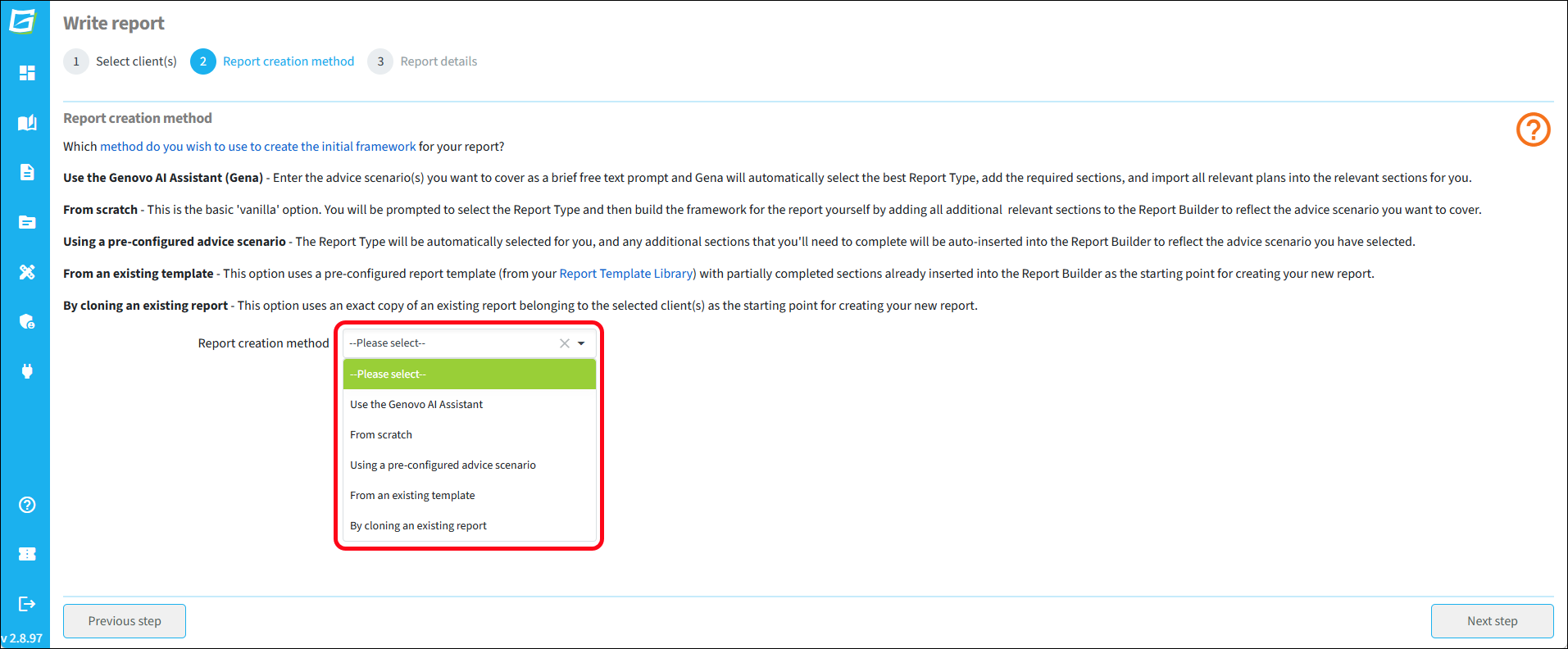
There are five options available:
- Use Gena (the Genovo AI Assistant)
- From scratch
- Using a pre-configured advice scenario
- From an existing report template
- By cloning an existing report
When might you use want to use these options?
- Gena can be used for almost any advice scenario, or combination of scenarios (the only advice type not currently covered by Gena is mortgages). It's AI-powered, so it's fast, easy and saves time. It's particularly powerful when your Genovo account is integrated with a back office system, as it will automatically pull in all the required plans from the back office.
Once you've learned how to tell Gena what you want, this is the perfect blend of speed, flexibility and AI assistance. - From scratch is the 'do-it-all' manual report creation method. There's nothing it can't cope with. If you choose this option, you have complete control over the report creation process, as you have to manually select a report type, add the required wizard sections and add / import the required plans.
Great for getting 'under the bonnet' of Genovo and for when you want total control of the report and its content. - Using a pre-configured advice scenario is one of three report creation methods in Genovo that give you partially-completed content. This method creates the initial framework of your report by selecting the Report Type and adding the report sections for you, but it doesn't complete any steps.
Great for writing a report for one of the 30 or so everyday advice scenarios covered. - From an existing report template is another creation method with partial completion. This method is a step on from the pre-configured advice scenario detailed above. Not only is the report type pre-selected and report sections already added, but you can pre-complete steps in the wizard sections too. The big difference with this report creation method is that you can create your own report templates.
Great for streamlining the process for predetermined advice scenarios and solutions particular to you or your advice firm.
- Cloning an existing report is the final report creation method that offers partial completion. You can only clone a report for the same client as the original report was created for. As the name suggests, it creates an exact copy of a report you've previously created, which you then use as the starting point for a new report.
Brilliant for annual reviews for existing clients.
Use Gena (the Genovo AI Assistant)
This is an AI-powered and streamlined report creation method that shaves minutes off the process of creating a report and is extremely easy to use.
Simply articulate your advice scenario(s) as a brief free text prompt and Gena will automatically:
- Select the most relevant Report Type;
- Create the initial framework of your report;
- Add all relevant sections; and
- Insert all relevant plans into the relevant sections in the Report Builder.
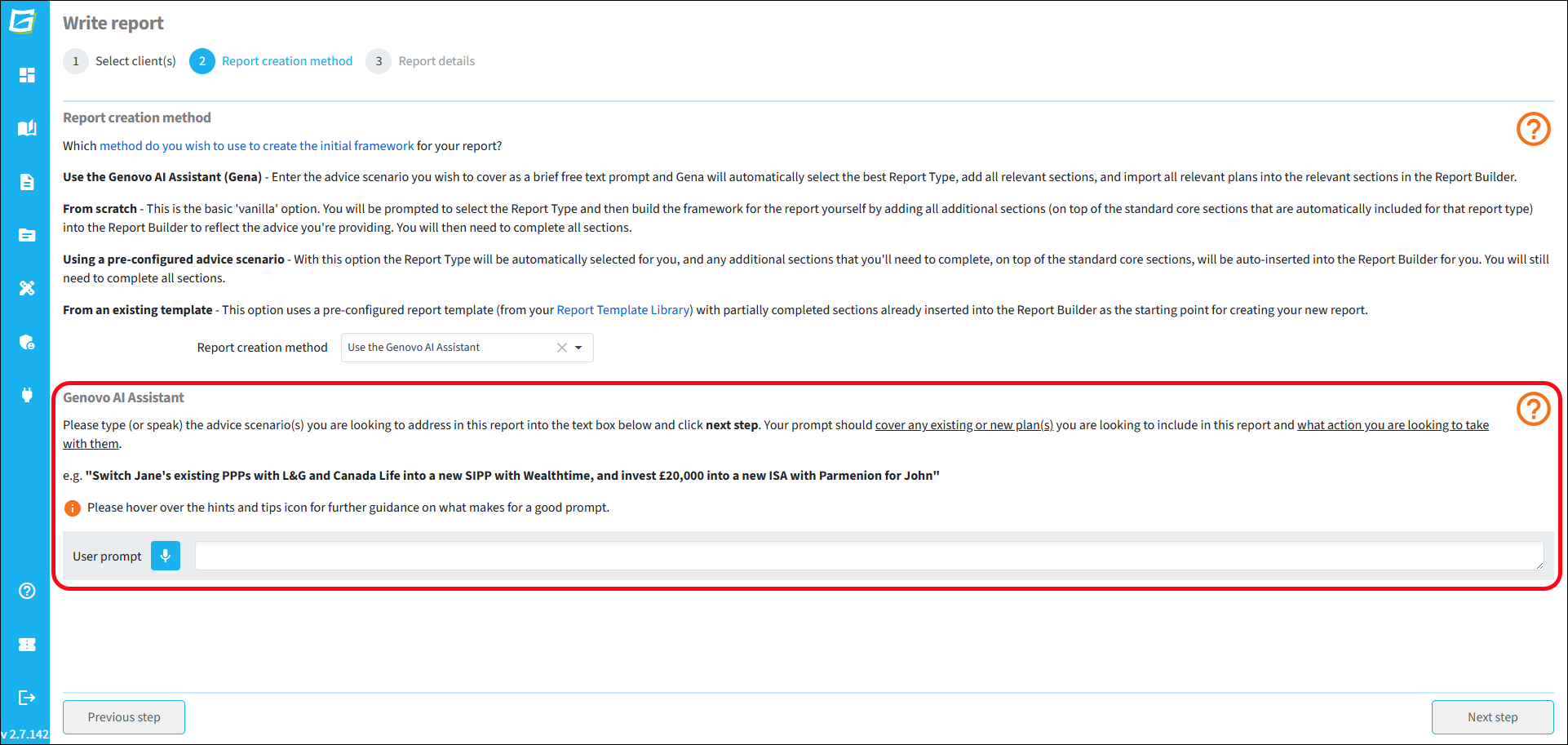
For example on entering the following prompt:
“Switch his existing PPP with L&G and Aviva into a new SIPP with Transact”.
Gena will determine the best Report Type for this advice scenario (a Suitability Report), and automatically insert the required sections as well as importing the required plans into the appropriate report sections.
Your prompt should always cover any existing or new plan(s) you are looking to include in your report and what action you are looking to take with them. You'll find further information about how to write an effective prompt in this article.
This video provides a demo of the Gena report creation method.
From scratch
This is the manual DIY option. On selecting this option, you’ll be prompted to select the Report Type you wish to use. Genovo has a number of different Report Types including:
- Suitability report
- Review Report - Recommendations
- Fund Switch
- Top Up / Bed & ISA
- Review Report – No Change
Each Report Type has been designed to cater for a slightly different advice scenario, and the Report Type selected will determine:
- Which sections are available in the Report Builder;
- Which steps show in the Wizard Sections included within the Report Builder;
- Which recommended actions show in the recommended action step of the review sections; and
- Which snippets (i.e., content) get included in the resultant report.
On clicking Create, you’ll be taken through to the Report Builder where you’ll notice that the standard core sections for that Report Type have been auto inserted. For example, here’s what the Report Builder initially looks like for the Suitability Report Report Type on initial creation.
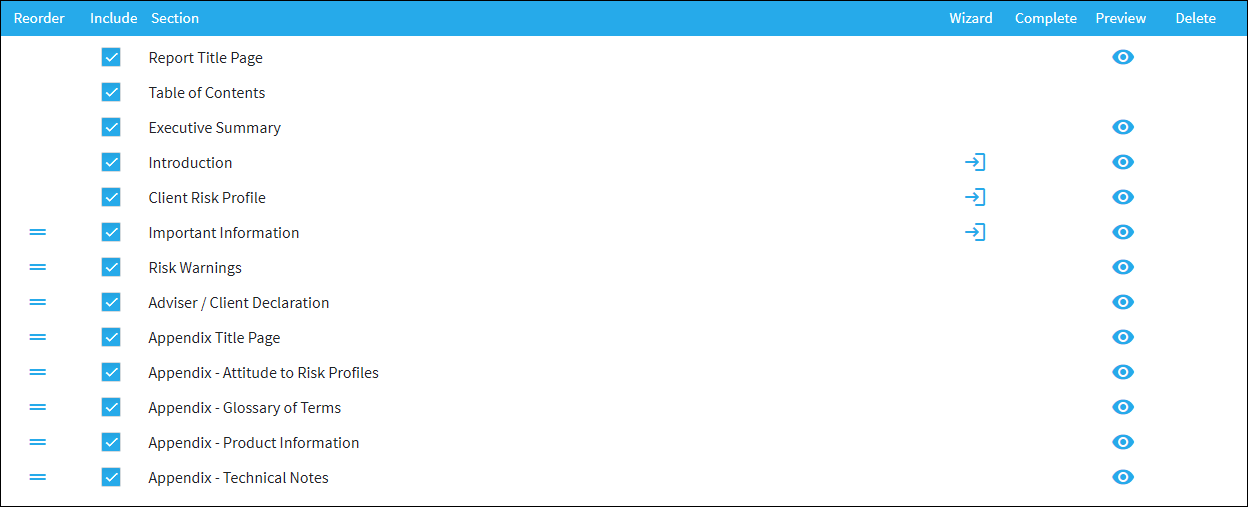
However, when building a report ‘from scratch’, irrespective of the Report Type selected, you will still need to add other sections from the 'Available sections' drop down to reflect the advice you're providing. For example, if you were recommending a pension switch you would need to add the:
- Review of Existing Uncrystallised Pensions;
- New Pension Recommendation; and
- Recommended Investment Strategy sections.
Having added all of the sections required, you will then need to step through each wizard section in turn and add all of the data required to complete that section.
The Genovo Advice Scenario Matrix is a really simple, but highly effective little tool (especially for those who are just starting out with Genovo) that demonstrates in a clear and tabular format which sections you need to add into the Report Builder for a variety of advice scenarios.
However, figuring out which sections you need to add for different advice scenarios is really straight forward and logical. Provided you remember the following general premise you’ll never go too far wrong.
- Recommendations in respect to existing plans are dealt with in review sections;
- New plan recommendations are dealt with in recommendation sections; and
- The recommendation of a new investment strategy for a new plan and / or a revised investment strategy for an existing plan is dealt with in the Recommended Investment Strategy section.
Using a pre-configured advice scenario
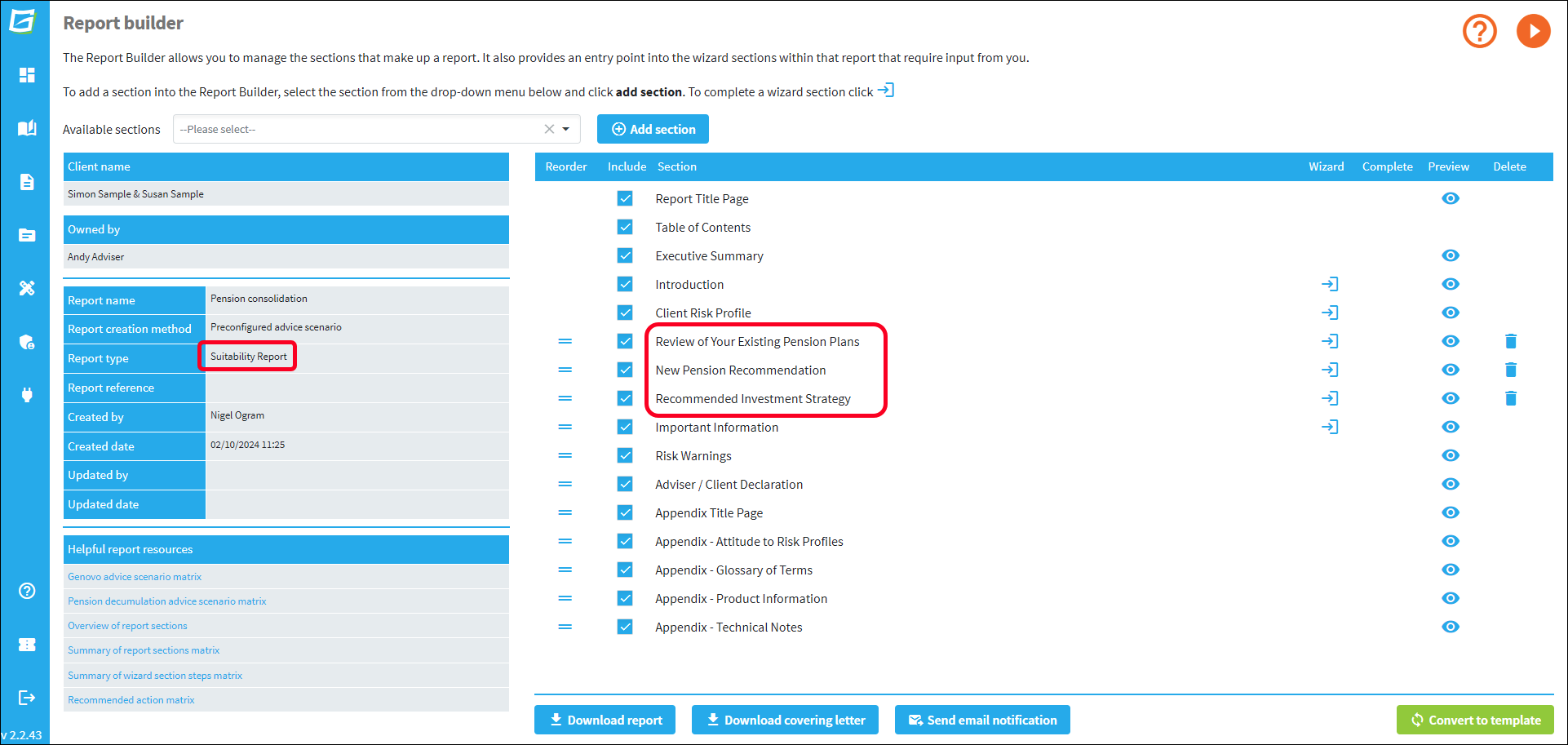
On selecting this option you’re prompted to select an advice scenario. A number of common place advice scenarios are included for your convenience. By selecting a scenario, the most appropriate Report Type will be automatically selected for you, and any additional sections that you’ll need to complete, on top of the standard core sections, will also be automatically inserted into the Report Builder for you.
As an example, let's say you selected the advice scenario 'Consolidate existing money purchase pensions in a new plan'. This scenario is clearly replacement business and as a result the Suitability Report Report Type is automatically selected and the Review of Existing Uncrystallised Pensions, New Pension Recommendation and Recommended Investment Strategy sections will be automatically inserted into the Report Builder in addition to the core sections that are inserted for a Suitability Report as standard.
From an existing report template
This option uses a pre-configured Report Builder (just like the previous creation method) but this time the sections can be partially pre-completed - it can therefore prove to be a very quick and effective way to build a report.
On selecting this option, you’ll be prompted to select a pre-created report template from your Report Template Library as the basis for creating the framework for your report.
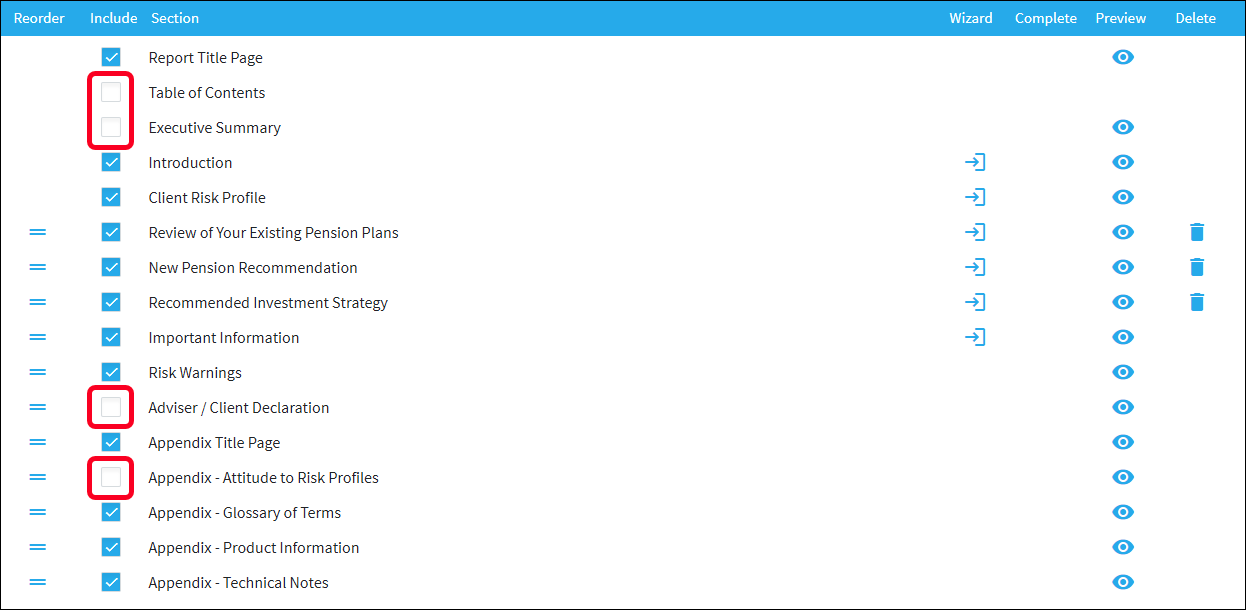
When you select a template, all of the additional sections that you will require will be automatically inserted into the Report Builder just as they are with a 'pre-configured advice scenario'. However, unlike the option of a 'pre-configured advice scenario', you can also have any of the sections you don’t want to include hidden by default.
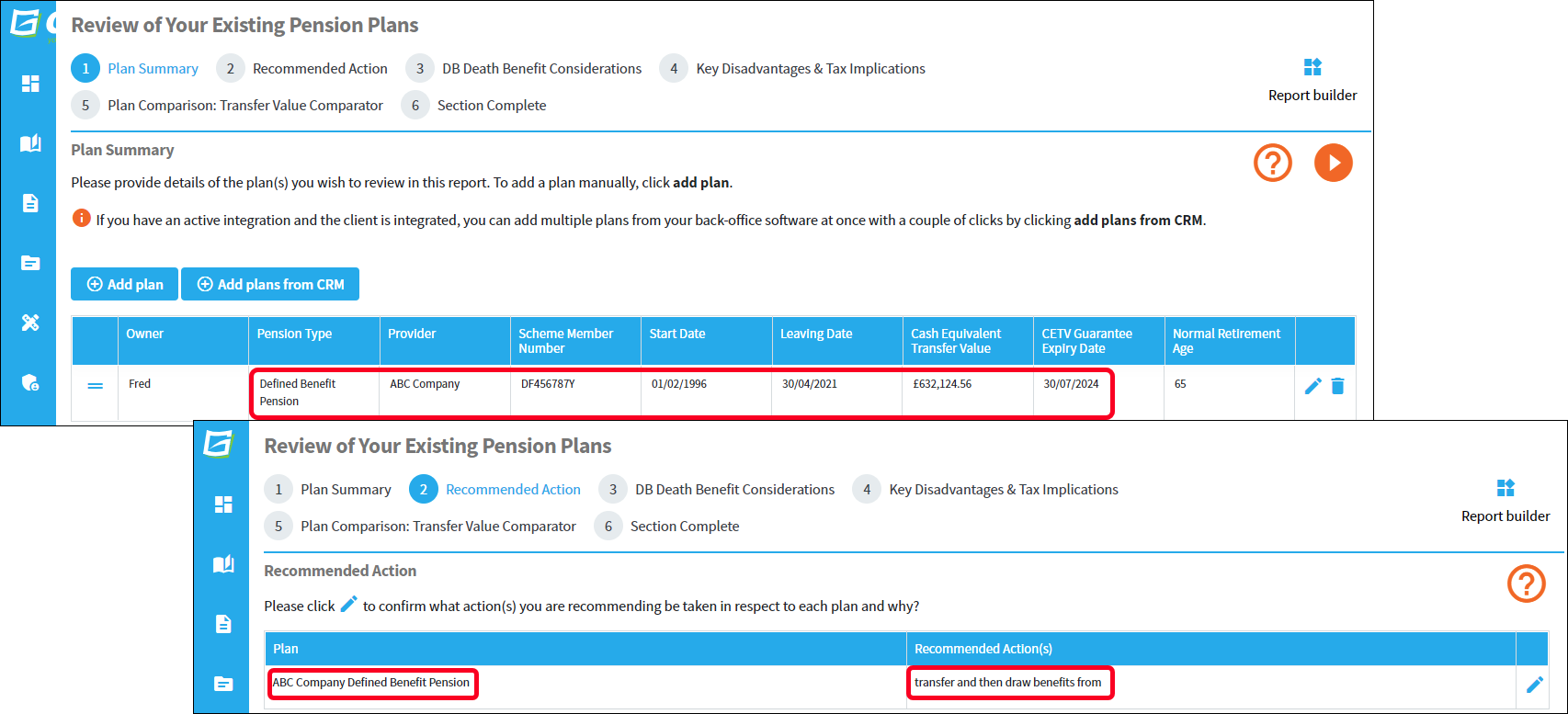
However, what really differentiates using a template from the other two report creation methods is that the steps of the various wizard sections can be pre-completed with data making it even quicker to complete a report, although you will still need to step through all of the wizard sections in turn and edit certain fields to ensure the report reflects the client’s individual circumstances and objectives.
By cloning an existing report
This option uses an exact copy of an existing report belonging to the selected client(s) as the starting point for creating your new report. This can be a very efficient report creation method for annual review reports, where the client still has the same plans and the recommended actions are identical or similar.
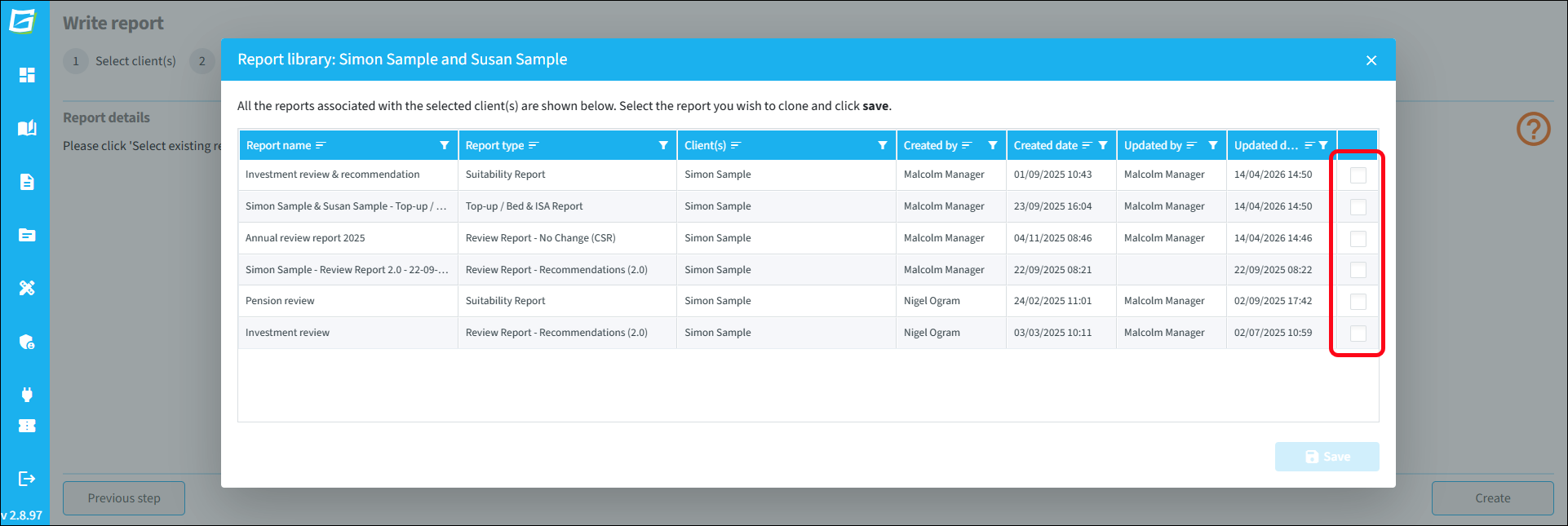
On selecting this option, as well as once again being prompted to give the report a name, insert a report reference and select the currency., you'll also be prompted to select a previous report from the client's report library.
When you use this report creation method, the new report will be a perfect replica of the original report. When you get to the Report Builder you should then step through all of the wizard sections in turn and edit certain fields to ensure the report reflects the client’s current circumstances and objectives, rather than what was contained in the previous report.
Finally, when building a report in Genovo it's always worth remembering that Genovo is a multi product, multi section modular report builder that allows you to deal with multiple advice scenarios and recommendations in one report, and therefore irrespective of the method you select to create your report, you can always add or remove sections from the Report Builder as required.